GTA 6 Xbox Auto-Upload Ban: How to Change Your Settings and Avoid a Two-Day Ban
Xbox players are facing bans due to default auto-upload settings capturing mature GTA 6 content. Here is how to disable automatic captures.
 © Rockstar Games

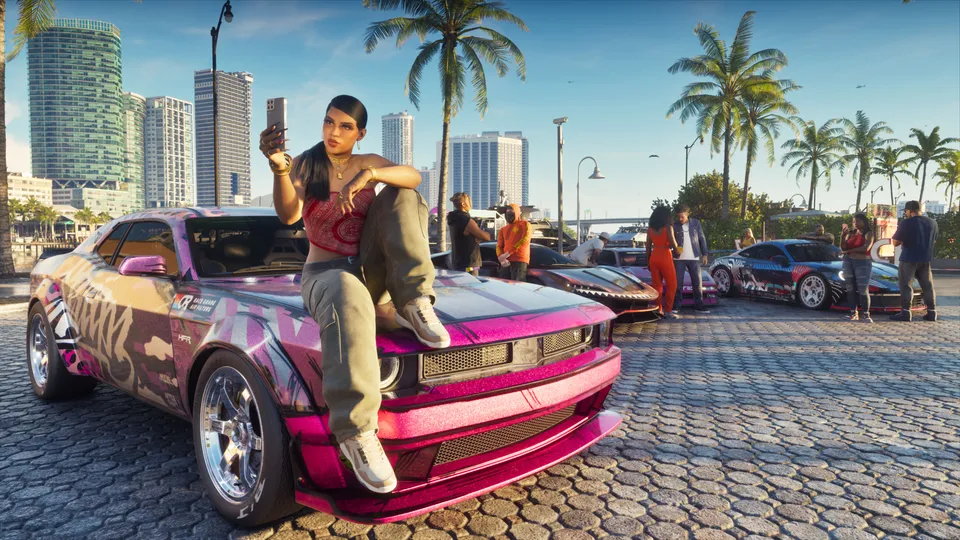
Xbox Series X and Series S players diving into Grand Theft Auto VI need to check their console settings immediately or risk facing a temporary network ban. According to GamesRadar+ and Video Games Chronicle reports published on November 21, 2026, automatic clip uploads are enabled as standard on Xbox consoles. Because GTA 6 features mature elements such as strip clubs and adult themes, uploading these captured moments straight to the Xbox Network can unintentionally violate strict platform policies regarding content suitability.
Why GTA 6 Clips Are Triggering Xbox Bans
The core of the issue lies in how Microsoft’s background capture features interact with open-world games. Xbox systems are programmed to routinely capture and sync game clips and screenshots depending on user preferences or default settings. However, the Xbox Community Standards enforce strict rules regarding mature material. Specifically, the ‘Keep your content clean’ term and the ‘Make stuff that’s suitable for all audiences’ rule dictate that public posts and messages must remain appropriate for all ages.
According to Xbox guidelines, infractions can be triggered by sharing content that includes mature sexual content, pornography, or non-consensual intimate imagery. Because Leonida is packed with risqué environments, late-night venues, and adult entertainment hubs like GTA 6 strip clubs, a routine background capture of your gameplay can land you in hot water if it syncs publicly without your knowledge. Players who rely on default configurations might find themselves locked out of their accounts before they even realize a clip has been flagged.
Step-by-Step: How to Turn Off Auto-Uploads on Xbox Series X|S
To protect your account from automated enforcement actions, you should manually adjust your capture settings on your console. Taking five minutes to change these preferences ensures that your gameplay stays private and doesn’t get automatically broadcast to cloud networks.
- Turn on your Xbox Series X or Xbox Series S console and press the Xbox button on your controller to open the guide.
- Navigate to the Profile & system tab, select Settings, and then choose Preferences or Captures depending on your dashboard version.
- Locate the Game captures section and look for the automatic upload options.
- Change both your Xbox Network and OneDrive auto-upload settings to ‘Don’t Upload’ to ensure no raw gameplay footage is sent to the cloud without your explicit review.
- Review your recent capture gallery to delete any questionable clips that may have already been uploaded in the background while exploring Vice City.
OneDrive Versus the Xbox Network
While Microsoft’s OneDrive cloud storage service tends to be significantly more lenient regarding what files and personal media you store privately, the public-facing Xbox Network is heavily moderated. Automated safety filters and manual user reports can quickly flag content that breaches family-friendly standards. Setting both networks to manual sharing or disabling automatic background syncing entirely is the safest route for anyone spending dozens of hours exploring Leonida.
For more ways to optimize your console experience, check out our guide on the GTA 6 Best Settings Guide: Display, Controller, and Audio Setup to ensure your game runs smoothly alongside your new privacy preferences.
Proof at a glance
| What | Shown by |
|---|---|
| Default Xbox behavior | Automatic uploads enabled as standard on Xbox consoles |
| Potential violations | Xbox Community Standards on mature and sexual content |
| Risk factors | In-game locations such as GTA 6 strip clubs and mature scenes |
| Recommended fix | Setting Xbox Network and OneDrive capture options to ‘Don’t Upload’ |
What this means for players
Preventative maintenance on your console settings is essential to enjoying GTA 6 without sudden interruptions. Nobody wants their launch week ruined by an automated suspension simply because the console’s background capture recorded a provocative storefront or nightlife district. By taking a moment to secure your privacy settings today, you can explore Leonida’s seedier side streets and neon-lit avenues with total peace of mind.
Evidence checked (2)
Everything you need is on this page. These are the records we checked the facts against.
- PressHow to turn off GTA 6 auto uploads on XboxGamesRadar+, 21 November 2026
- PressGTA 6 Xbox PSA: How to Stop Automatic Clip Uploads and Avoid BansVideo Games Chronicle, 21 November 2026
Spotted an error? Report a correction. Read our verification policy.
Watch: real GTA 6 gameplay
12 GTA 6 Settings You Need to Change Right Now (PS5 & Xbox)
Doctor Glitch
GTA 6 Best Settings: Change These NOW for Smoother Gameplay (PS5, PS5 Pro & Xbox)
JoblessGarrett
Settings You NEED To Change In GTA 6! (ALL PLATFORMS!)
MrRoflWaffles
Related reading
 © Rockstar Games
GTA 6 CE-108255-1 Error: How to Fix PS5 and Xbox Crash Issues
Players on PS5 and Xbox Series X report game crashes and error CE-108255-1 in GTA 6. Here is what is happening and how to troubleshoot the issue.
5 min read
© Rockstar GamesGTA 6 HDR Calibration Fix: How to Fix the Broken Display Settings
Fix GTA 6's broken HDR calibration tool on PS5 and Xbox Series X|S with three recommended display settings from experts.
3 min read
© Rockstar GamesGTA 6 Xbox Auto-Upload Ban: How to Change Your Settings and Avoid a Two-Day Ban
Xbox players are receiving two-day bans due to automatic game captures flagging adult content in GTA 6. Here is how to turn off auto-uploads and protect your account.
3 min read